
Save and reuse assets
Reuse props, poses and camera setups instead of rebuilding them.
On this page
What this helps you do
Reuse props, poses and camera setups instead of rebuilding them.
When to use it
You need the same prop, pose or camera arrangement in more than one project.
Before you begin
Use the desktop app and check the edition requirement: Pro / active trial. The current published version is shown above. Confirm the selected item and playhead before changing anything. This audit does not verify a physical Windows device.
Step by step
Screenshots: Mac v1.7.0 Follow each step with the real app interface below. Select an image to enlarge the marked area.
- Select the object or camera setup you want to reuse and check the asset type in the save flow.
Figure 1 Asset-save controls in object properties. Choose between the object and its pose/actions. - Give it a recognizable name, save it and confirm that it appears in Assets.
Figure 2 Search and categories in Assets. This capture shows an empty library; a successfully saved asset should appear here. - Instantiate a copy in a test project and inspect position, size, animation and camera bindings.
Figure 3 Search and categories in Assets. This capture shows an empty library; a successfully saved asset should appear here. - When reusing a camera in another project, check its subject again. A missing original subject should not be silently replaced with an unrelated character.
Figure 4 Subject and composition: check the subject before adjusting shot size, camera angle and screen position.
Manage custom wooden poses in the Pose window; defaults cannot be overwritten. Preserve complete projects and required custom assets before moving devices.
Changes in 1.6.0
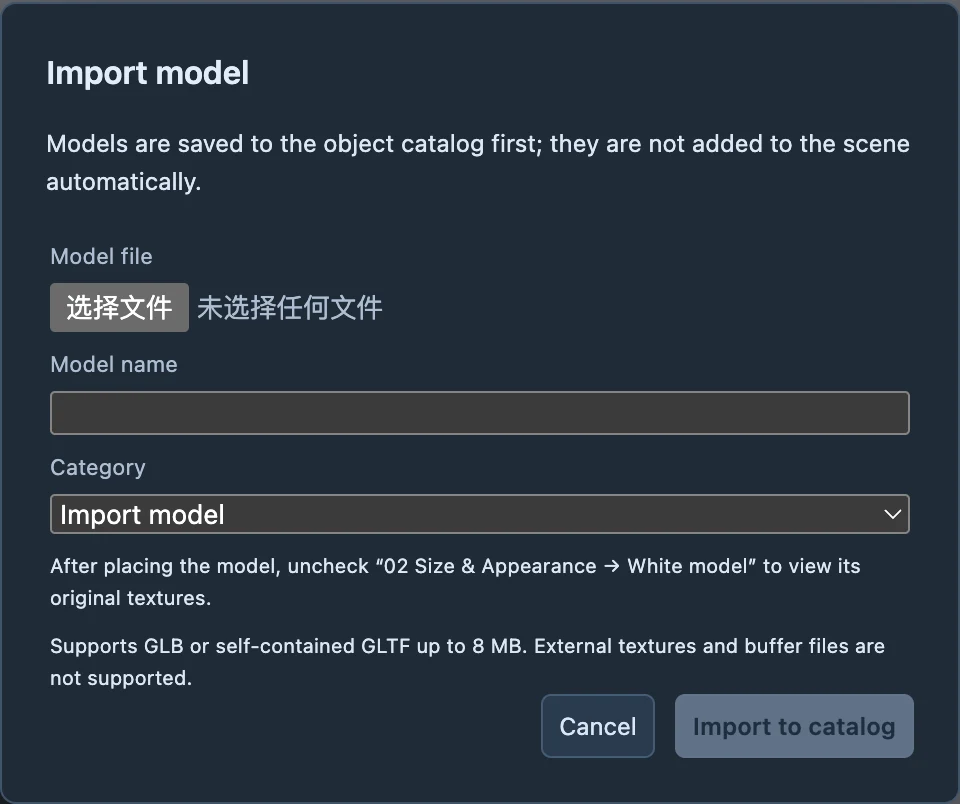
Use Scene objects → Import model for GLB/GLTF files, then choose an existing category or create one in the import dialog. Importing adds a library card without placing it in the 3D scene; click or drag the card to insert it. Long names are shortened visually and shown in full on hover. Right-click to move a card to another group or delete it after confirmation. Select an inserted model and turn off White model in 02 Size & appearance to inspect its original textures. Invalid structures, resources and unsupported content are rejected before saving to the library.
Settings and edit scope
| Control or concept | Meaning and boundary |
|---|---|
| Asset | Reuses part of a project; it is not a complete project bundle. |
| Camera asset | Carries camera settings and bindings. Check the subject after moving between projects. |
Check the result
The reused instance can be selected and edited independently while the source asset remains available.
Troubleshooting and recovery
Use a complete project bundle for migration. Saving an individual asset does not back up every reference image, audio file and project relationship.
If the result is unexpected, stop playback, check the selected item and time, and use Undo before making another change. Keep a backup rather than repeatedly overwriting the project.
Keep learning
Include your app version, operating system and the error message. Never include your license or API key.