
How to Align Storyboards with 3D Camera Positions: A Shot-by-Shot Approach
When you have existing storyboards, first bind the reference images to the shots, then use opacity and outline mode to align the characters, horizon line, and framing. Learn the workflow in Baimo Director and why reference images are excluded from exports.
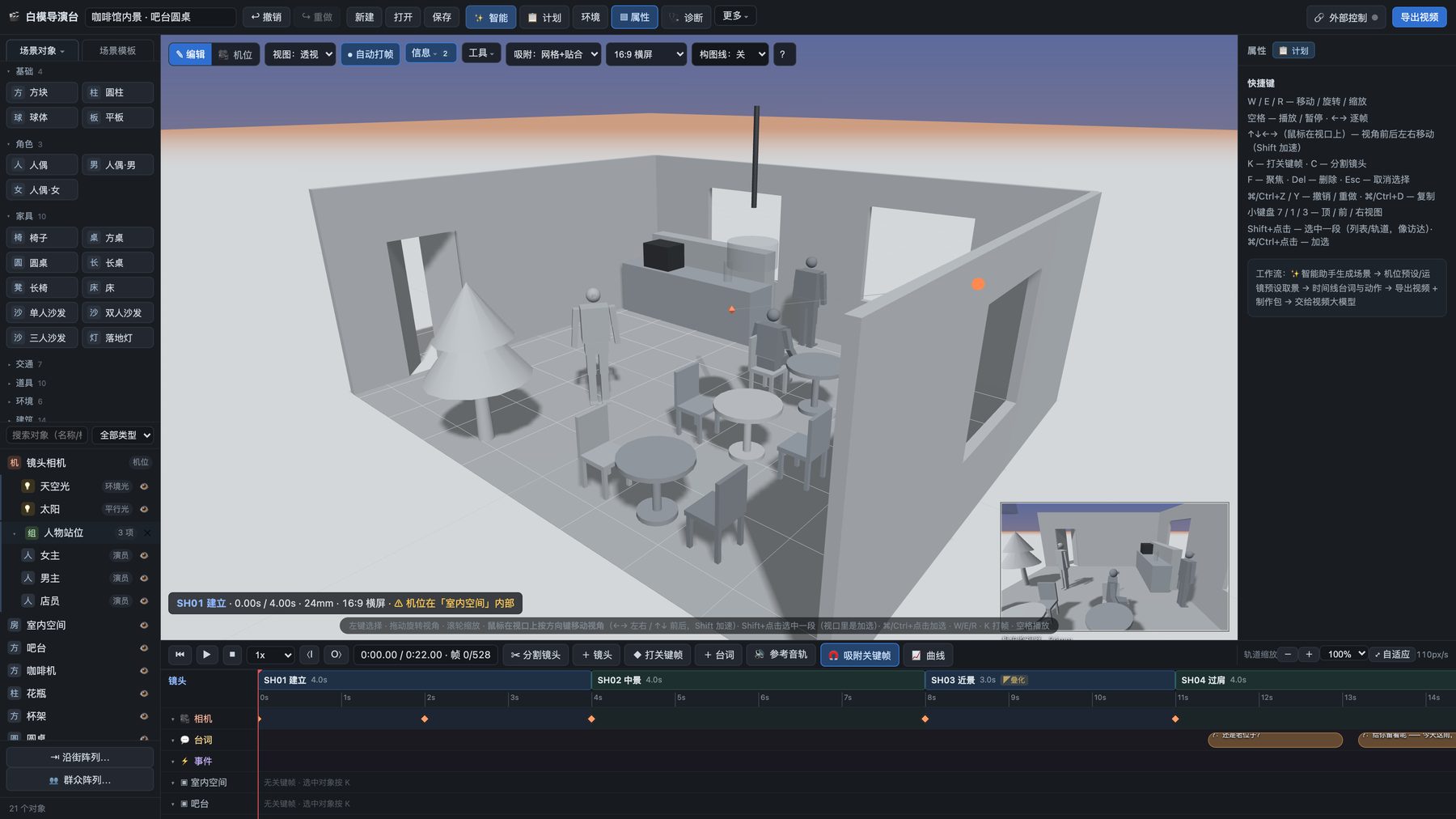
Once you have a set of storyboards, how do you find the corresponding camera positions in a 3D scene? Switching back and forth between the viewport and the image based solely on memory makes it easy to misplace characters, misalign the horizon, or get the frame edges wrong. A more reliable method is to overlay the reference image onto the current shot’s frame, allowing you to adjust the camera while viewing them together.
Bind Each Reference Image to Its Respective Shot First
In Baimo Director, you can import a set of storyboard images, selecting multiple images at once, and then bind each image to its corresponding shot. When you switch between shots, the frame will display the specific image bound to that shot; unbound shots remain clean and will not carry over the image from the previous shot.
Establish a clear correspondence between your shots and images before binding. For example, assign “Entrance Wide Shot” and “Character Reaction Close-up” to their respective shots rather than relying on the order of import. If the storyboard is revised later, you should also check that the bindings for each shot remain correct.
Align Broad Relationships Before Fine-Tuning Composition
After opening the reference image for a specific shot, first compare the major relationships between the characters and the scene: which side of the frame the subject is on, the height of the horizon, and whether doors, windows, or tabletops fall into the expected positions. Then, adjust the camera position, direction, and framing. Do not compromise the logical spatial relationships in your 3D scene just to make a 2D image perfectly overlap.
The reference image layer can be dragged, scaled, and rotated within the frame. When you need to compare outlines more precisely, you can lower the opacity or switch to outline mode to show only the lines of the reference image. This makes it easier to observe compositional differences while still seeing the 3D whitebox scene itself.
Check Adjacent Shots via Continuous Playback
After aligning a single shot, play the preceding and following shots to ensure that character orientation, eyelines, and direction of movement remain consistent. If a shot looks right in isolation but the character suddenly flips sides when cutting, re-examine the camera placement rather than fixating on a single-frame match. For more on such issues, see the Previs Quality Checklist.
Reference Images Are Editing Aids, Not Deliverables
Reference images are overlaid only within the editing frame and will not be included in the exported whitebox video, first and last frames, or prompt cards. The images themselves and their positioning are saved locally, and the project file stores references to these images. If you open the project on another device without the corresponding images, the reference images may not display, but the shots within the project will still open.
If you need to hand off the storyboard to your team, please manage the original image files separately. If you need to hand off the filming plan to subsequent video generation workflows, first check the whitebox scene, camera movement, and timing, then choose the appropriate export materials. For specific functions and operating scope, see the Reference Image Overlay feature page.